
Product docs and API reference are now on Akamai TechDocs.
Search product docs.
Search for “” in product docs.
Search API reference.
Search for “” in API reference.
Search Results
results matching
results
No Results
Filters
Deploy the Elastic Stack through the Linode Marketplace
Quickly deploy a Compute Instance with many various software applications pre-installed and ready to use.
Cluster Deployment Architecture

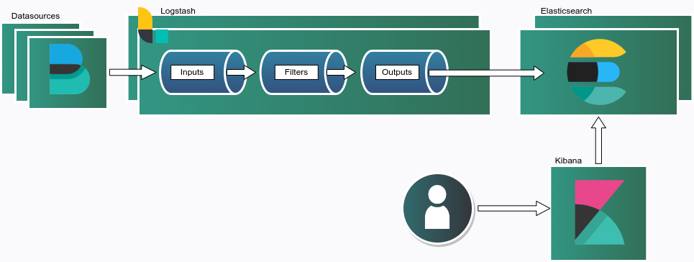
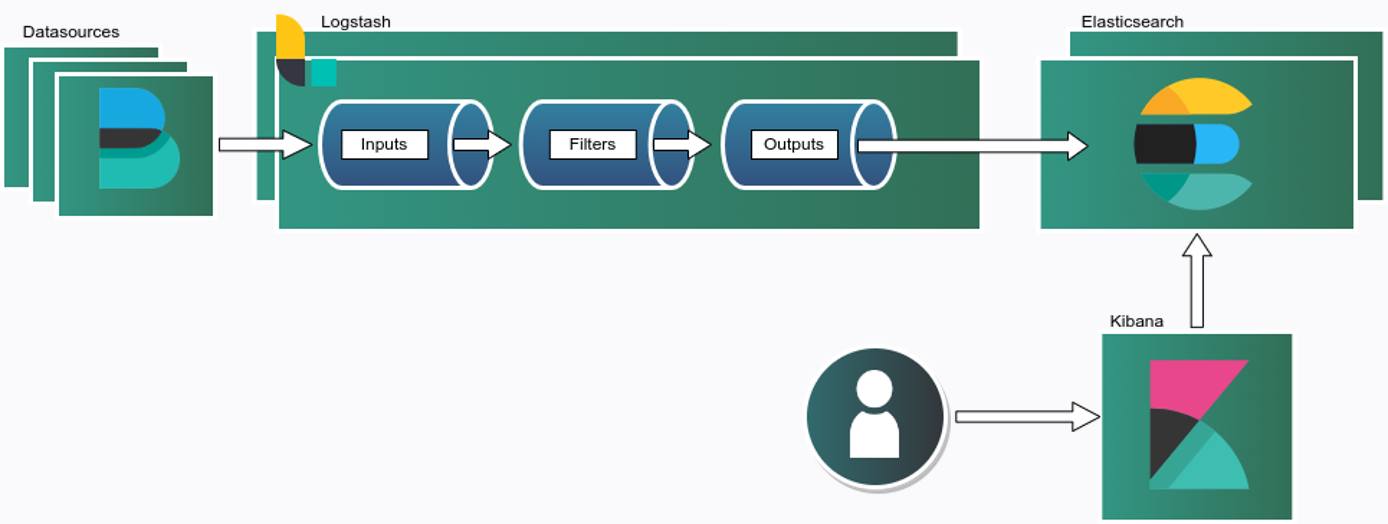
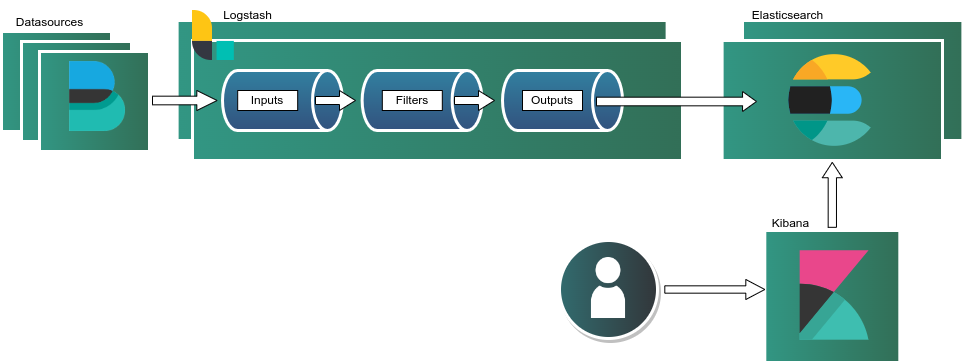
The Elastic Stack is a unified observability platform that brings together search, data processing, and visualization through Elasticsearch, Logstash, and Kibana. It provides an end-to-end pipeline for ingesting, transforming, indexing, and exploring operational data at scale. Elasticsearch delivers distributed search and analytics with near real-time indexing, while Logstash enables flexible data collection and enrichment from diverse sources. Kibana offers an interactive interface for visualizing log streams, building dashboards, and performing advanced analysis.
This solution is well-suited for log aggregation, application monitoring, infrastructure observability, and security analytics. Its open architecture and extensive ecosystem make it adaptable to a wide range of use cases—including distributed system debugging, SIEM workflows, API performance monitoring, and centralized logging.
This Marketplace application stands up a multi-node Elastic Stack cluster using an automated deployment script configured by Akamai.
Deploying a Marketplace App
The Linode Marketplace lets you easily deploy software on a Compute Instance using Cloud Manager. See Get Started with Marketplace Apps for complete steps.
Log in to Cloud Manager and select the Marketplace link from the left navigation menu. This displays the Linode Create page with the Marketplace tab pre-selected.
Under the Select App section, select the app you would like to deploy.
Complete the form by following the steps and advice within the Creating a Compute Instance guide. Depending on the Marketplace App you selected, there may be additional configuration options available. See the Configuration Options section below for compatible distributions, recommended plans, and any additional configuration options available for this Marketplace App.
Click the Create Linode button. Once the Compute Instance has been provisioned and has fully powered on, wait for the software installation to complete. If the instance is powered off or restarted before this time, the software installation will likely fail.
To verify that the app has been fully installed, see Get Started with Marketplace Apps > Verify Installation. Once installed, follow the instructions within the Getting Started After Deployment section to access the application and start using it.
Configuration Options
Elastic Stack Options
Linode API Token (required): Your API token is used to deploy additional Compute Instances as part of this cluster. At a minimum, this token must have Read/Write access to Linodes. If you do not yet have an API token, see Get an API Access Token to create one.
Email address (for the Let’s Encrypt SSL certificate) (required): Your email is used for Let’s Encrypt renewal notices. A valid SSL certificate is validated through certbot and installed on the Kibana instance in the cluster. This allows you to visit Kibana securely through a browser.
Limited Sudo User
You need to fill out the following fields to automatically create a limited sudo user, with a strong generated password for your new Compute Instance. This account will be assigned to the sudo group, which provides elevated permissions when running commands with the sudo prefix.
Limited sudo user: Enter your preferred username for the limited user. No Capital Letters, Spaces, or Special Characters.
Locating The Generated Sudo Password A password is generated for the limited user and stored in a
.credentialsfile in their home directory, along with application specific passwords. This can be viewed by running:cat /home/$USERNAME/.credentialsFor best results, add an account SSH key for the Cloud Manager user that is deploying the instance, and select that user as an
authorized_userin the API or by selecting that option in Cloud Manager. Their SSH pubkey will be assigned to both root and the limited user.Disable root access over SSH: To block the root user from logging in over SSH, select Yes. You can still switch to the root user once logged in, and you can also log in as root through Lish.
Accessing The Instance Without SSH If you disable root access for your deployment and do not provide a valid Account SSH Key assigned to theauthorized_user, you will need to login as the root user via the Lish console and runcat /home/$USERNAME/.credentialsto view the generated password for the limited user.
") within any of the App-specific configuration fields, including user and database password fields. This special character may cause issues during deployment.TLS/SSL Certificate Options
The following fields are used when creating the self-signed TLS/SSL certificates for the cluster.
- Country or region (required): Enter the country or region for you or your organization.
- State or province (required): Enter the state or province for you or your organization.
- Locality (required): Enter the town or other locality for you or your organization.
- Organization (required): Enter the name of your organization.
- Email address (required): Enter the email address you wish to use for your certificate file.
- CA Common name: This is the common name for the self-signed Certificate Authority.
Picking the Correct Instance Plan and Size
In the Cluster Settings section you can designate the size for each component in your Elastic deployment. The size of the cluster depends on your needs–if you are looking for a faster deployment, stick with the defaults provided.
- Kibana Size: This deployment creates a single Kibana instance with Let’s Encrypt certificates. This option cannot be changed.
- Elasticsearch Cluster Size: The total number of nodes in your Elasticsearch cluster.
- Logstash Cluster Size: The total number of nodes in your Logstash cluster.
Next, associate your Elasticsearch and Logstash clusters with a corresponding instance plan option.
- Elasticsearch Instance Type: This is the plan type used for your Elasticsearch cluster.
- Logstash Instance Type: This is the plan type used for your Logstash cluster.
Additional Configuration
Filebeat IP addresses allowed to access Logstash: If you have existing Filebeat agents already installed, you can provide their IP addresses for an allowlist. The IP addresses must be comma separated.
Logstash username to be created for index: This is the username that is created and can access index below. This is created so that you can begin ingesting logs after deployment.
Elasticsearch index to be created for log ingestion: This lets you start ingesting logs. Edit the index name for your specific use-case. For example, if you have WordPress application you want to perform log aggregation for, the index name
wordpress-logswould be appropriate.
Getting Started After Deployment
Accessing Elastic Frontend
Once you cluster has finished deploying, you can log into your Elastic cluster using your local browser.
Log into the provisioner node as your limited sudo user, replacing
USERwith the sudo username you created, andIP_ADDRESSwith the instance’s IPv4 address:ssh USER@IP_ADDRESSThe provisioner node is also the Kibana node Your provisioner node is the first Linode created in your cluster and is also the instance running Kibana. To identify the node in your list of Linodes, look for the node appended with the name “kibana”. For example:kibana-76f0443cOpen the
.credentialsfile with the following command. ReplaceUSERwith your sudo username:sudo cat /home/USER/.credentialsIn the
.credentialsfile, locate the Kibana URL. Paste the URL into your browser of choice, and you should be greeted with a login page.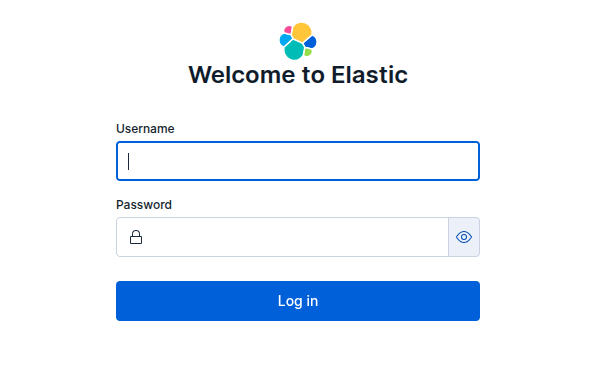
To access the console, enter
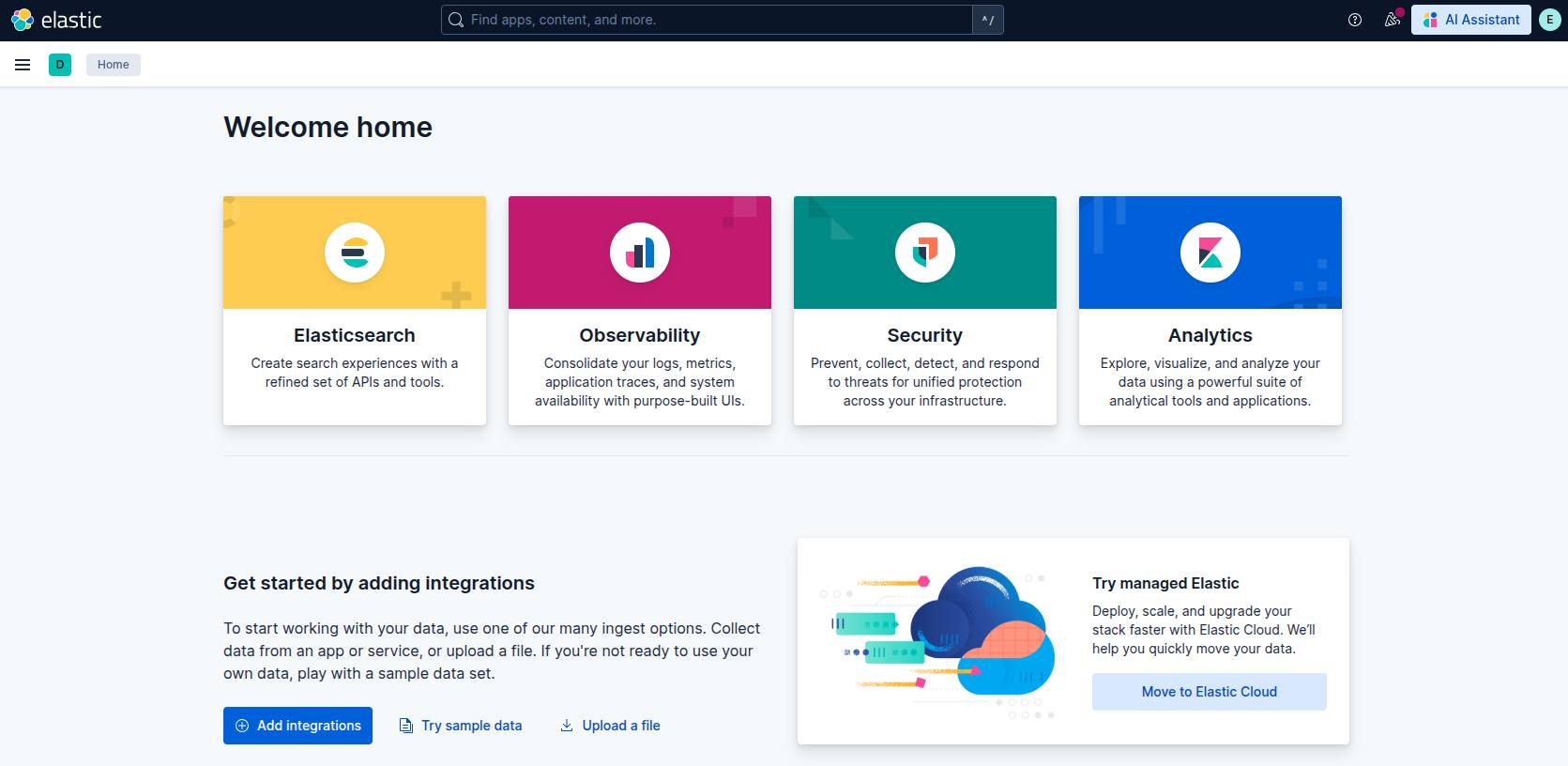
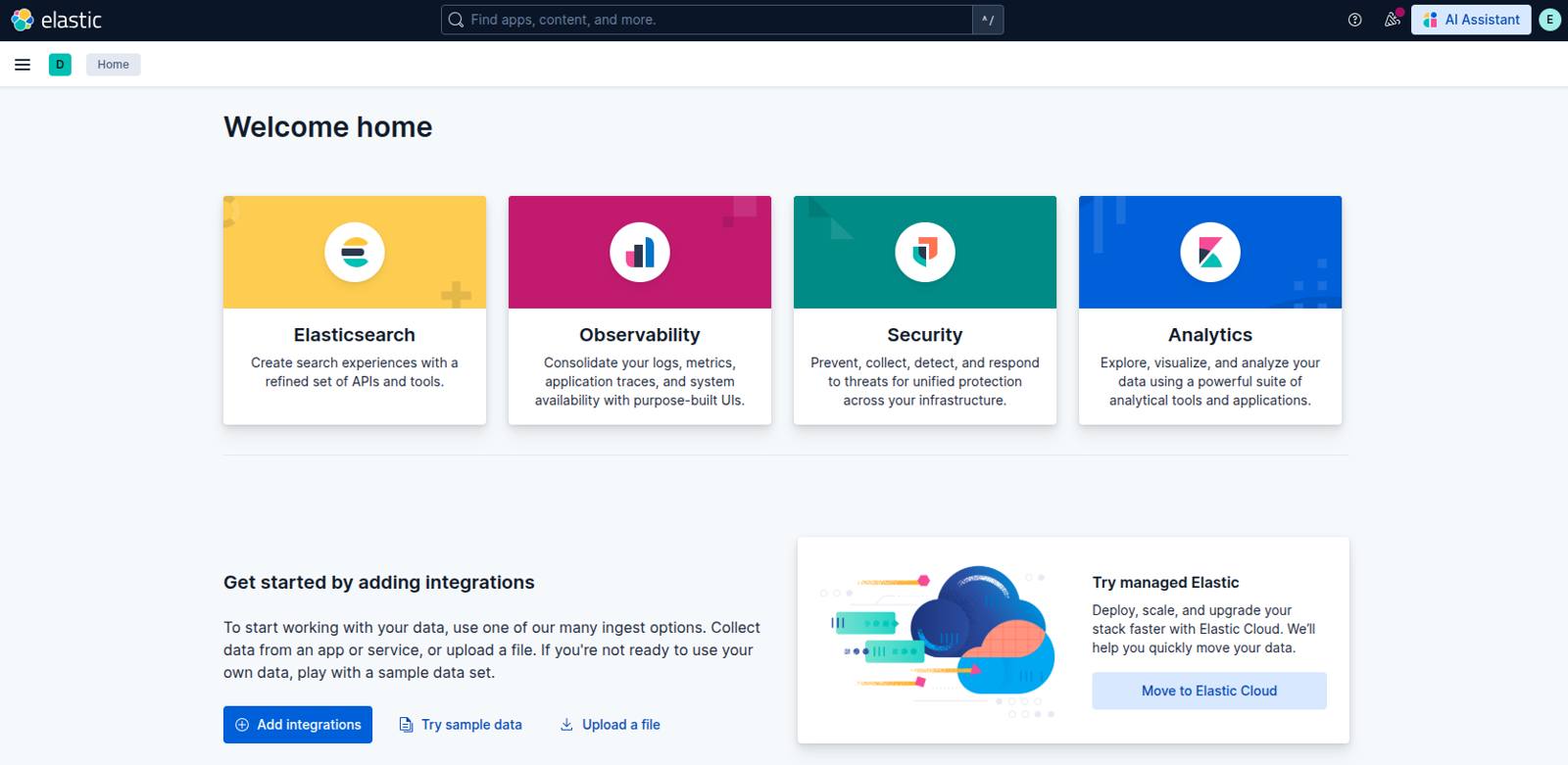
elasticas the username along with the password posted in the.credentialsfile. A successful login redirects you to the welcome page. From there you are able to add integrations, visualizations, and make other config changes.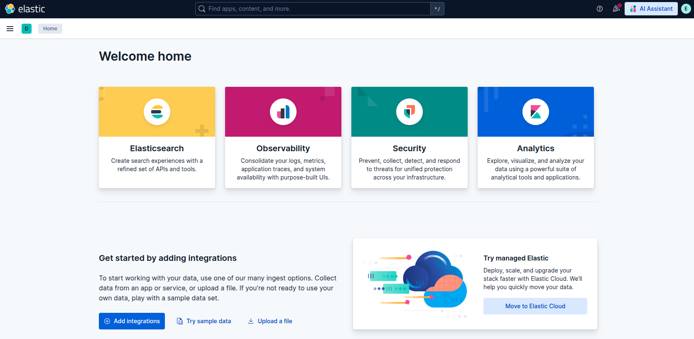
Configure Filebeat (Optional)
Follow the next steps if you already have Filebeat configured on a system.
Create a backup of your
/etc/filebeat/filebeat.ymlconfiguration:cp /etc/filebeat/filebeat.yml{,.bak}Update your Filebeat inputs:
- File: /etc/filebeat/filebeat.yml
1 2 3 4 5 6 7 8 9 10 11 12 13 14 15 16 17 18 19filebeat.inputs: # Each - is an input. Most options can be set at the input level, so # you can use different inputs for various configurations. # Below are the input-specific configurations. # filestream is an input for collecting log messages from files. - type: filestream # Unique ID among all inputs, an ID is required. id: web-01 # Change to true to enable this input configuration. #enabled: false enabled: true # Paths that should be crawled and fetched. Glob based paths. paths: - /var/log/apache2/access.log
In this example, the
idmust be unique to the instance so you know the source of the log. Ideally this should be the hostname of the instance, and this example uses the value web-01. Updatepathsto the log that you want to send to Logstash.While in the
/etc/filebeat/filebeat.yml, update the Filebeat output directive:- File: /etc/filebeat/filebeat.yml
1 2 3 4 5 6 7output.logstash: # Logstash hosts hosts: ["logstash-1.example.com:5044", "logstash-2.example.com:5044"] loadbalance: true # List of root certificates for HTTPS server verifications ssl.certificate_authorities: ["/etc/filebeat/certs/ca.pem"]
The
hostsparam can be the IP addresses of your Logstash host or a FQDN. In this example, logstash-1.example.com and logstash-2.example.com are added to the/etc/hostsfile.Add a Certificate Authority (CA) certificate by adding the contents of
ca.crtto your/etc/filebeat/certs/ca.pemfile.To obtain your
ca.crt, open a separate terminal session, and log into your Kibana node. Navigate to the/etc/kibana/certs/cadirectory, and view the file contents with thecatcommand:cd /etc/kibana/certs/ca sudo cat ca.crtCopy the file contents, and add it to your
ca.pemfile on your Filebeat system.Once you’ve added the certificate to your
ca.pemfile, restart the Filebeat service:systemctl start filebeat systemctl enable filebeat
Once complete, you should be able to start ingesting logs into your cluster using the index you created.
More Information
You may wish to consult the following resources for additional information on this topic. While these are provided in the hope that they will be useful, please note that we cannot vouch for the accuracy or timeliness of externally hosted materials.
This page was originally published on
